

Imagine the scene: you pick up your phone in the morning, open the gallery to review that special photo from your daughter’s birthday — and find nothing. The device fell, the screen cracked, it had a fatal error, and all the memories of the last five years simply vanished. It’s not a distant nightmare. It’s a situation that happens to thousands of people every day, and the main reason is always the same: lack of backup.
Backup is the name given to the process of creating a safety copy of your files in another location — either in the cloud (remote servers accessed via the internet) or on a separate physical device. The idea is simple: if the original is lost, the copy still exists. Yet, many people delay this task by thinking it’s complicated, unnecessary, or simply not knowing where to start.
This guide was created to end this doubt once and for all. You’ll understand how backup works on your phone, which tools to use on Android and iPhone, and how to create a routine that protects your photos without giving you a headache.
Why your photos are at risk every day
The smartphone has become the main photo album for most Brazilian families. Records of births, parties, trips, everyday moments — everything goes through the smartphone camera. But that same device stays in your pocket, falls on the ground, gets wet, is stolen, overheats, and one day simply stops working.
The most common reasons for permanent loss of photos include:
- Physical damage or breakage of the device (cracked screen with internal damage, water damage)
- Theft or robbery of the phone without any possibility of recovery
- Internal storage failure caused by data corruption
- Accidental deletion of files — the famous “I deleted it by mistake”
- Device formatting without saving anything first
- Malware or virus attack that deletes or blocks files
None of these situations is unlikely. On the contrary: statistically, over several years of use, the chance of facing at least one of these problems is quite high. The good news is that all of them can be avoided with a well-done backup.
What is cloud backup and how does it work
When we talk about “cloud backup,” we’re referring to the automatic sending of your files to servers from companies like Google, Apple or Microsoft. These servers are located in data centers spread around the world, with extremely high security and redundancy — that is, even if one server fails, the data is replicated on others.
The big advantage is convenience: once configured, backup happens automatically, usually when your phone is connected to Wi-Fi and charging. You don’t need to do anything. If you change phones, you’ll just need to log into your account to recover everything.
The main disadvantage is the free storage limit. Most services offer between 5 GB and 15 GB at no cost, which may not be enough for those with many high-resolution photos and videos. In these cases, it’s necessary to subscribe to a paid plan.
Backup on Android: Google Photos and other options
If you use an Android phone (Samsung, Motorola, Xiaomi and most smartphones in Brazil), the recommended tool is Google Photos.
How to enable backup on Google Photos
- Open the Google Photos app on your phone (it comes pre-installed on most Android devices).
- Tap your profile photo in the top right corner.
- Select “Google Photos settings”.
- Tap “Backup”.
- Enable the “Backup” button to turn on the feature.
- Choose whether you want to backup using Wi-Fi only (recommended to save mobile data) or also mobile data.
Done. From then on, whenever your phone is connected to Wi-Fi and charging, photos will be automatically sent to your Google account.
Important details about Google Photos:
- The Google account offers 15 GB free, shared between Gmail, Google Drive and Google Photos.
- Paid plans (Google One) are available from 100 GB.
- High-resolution photos and videos consume more space.
- You can access your photos from any device with the same Google account.
Other options for Android
- Amazon Photos: offers unlimited photo storage (not videos) for Amazon Prime subscribers.
- Microsoft OneDrive: integrated into the Windows ecosystem, with 5 GB free and paid plan options.
- Dropbox: popular among those using multiple devices, with 2 GB free.
Backup on iPhone: iCloud and alternatives
If you use an iPhone, Apple’s native solution is iCloud. It works similarly to Google Photos: it enables automatic backup and syncs everything with your Apple account.
How to enable photo backup on iCloud
- Open the Settings app (gear icon).
- Tap your name at the top of the screen.
- Select “iCloud”.
- Tap “Photos”.
- Enable “iCloud Photos”.
With this, all photos and videos will be automatically synced to iCloud.
Important details about iCloud:
- Apple offers only 5 GB free — quite a limited amount for those using the iPhone as their main camera.
- Paid plans (iCloud+) start from 50 GB.
- Photos are accessible on all Apple devices connected to the same account.
iPhone can also use Google Photos
A popular alternative for iPhone owners who don’t want to pay for iCloud is to install Google Photos from the App Store and set up backup there. The process is the same as described for Android, and you get 15 GB free from Google.
Physical backup: when to save to an external drive or computer
The cloud is convenient, but not everyone feels comfortable with data stored on third-party servers — and that’s understandable. An efficient alternative or complement is physical backup: copying your photos to a computer, external hard drive or USB drive.
Step-by-step guide for physical backup on your computer
Android:
- Connect your phone to your computer with a USB cable.
- On your phone, swipe down the notification bar and select “File Transfer” (or “MTP”).
- Your phone will appear as a device on your computer (Windows Explorer or Finder on Mac).
- Navigate to the DCIM folder within your phone’s storage.
- Copy and paste the photos to a folder of your choice on your computer.
iPhone:
- On Windows, install iTunes or use the Windows Photos app.
- Connect your iPhone with a USB cable.
- Authorize the connection on your phone when prompted.
- Import your photos using the Photos app.
- On Mac, just connect your iPhone — it automatically appears in Finder or the Photos app.
Essential tip: if you use an external hard drive, keep the backup in at least two different physical locations. A fire or robbery could take both your phone and the hard drive at the same time.
Combining cloud and physical backup: the safest strategy
Information security professionals recommend the so-called 3-2-1 rule:
- 3 copies of your data
- on 2 different types of media
- with 1 copy off-site
In practice, for phone photos, this translates to:
- Photos on your phone itself (original)
- Automatic backup in the cloud (Google Photos or iCloud)
- Monthly or quarterly copy to an external hard drive stored at home (or at a relative’s house)
This combination protects against virtually every loss scenario, from theft to natural disaster. It may seem like overkill for everyday use, but anyone who has lost years of photos knows that regret has no price.
Practical tips to keep your backup up to date
In addition to setting up backup, it’s important to create simple habits that ensure it actually works when you need it:
- Check your backup regularly: open Google Photos or iCloud once a month and confirm that your most recent photos are there.
- Keep an eye on available space: when storage fills up, backup stops automatically. If a “storage full” warning appears, resolve it right away.
- Don’t rely solely on your old phone: when switching devices, transfer the data before selling or disposing of the old one.
- Enable backup via Wi-Fi: this avoids unnecessary mobile data expenses.
- Review app permissions: check if the backup app has permission to access your gallery — without it, it won’t work.
- Keep the app updated: outdated versions may have glitches that compromise backup.
If you’re interested in technology and want to better understand how the digital world works in practice, it’s worth exploring other content, like this guide on digital marketing for beginners: understand from scratch, which explains useful concepts for those starting to navigate the online environment more consciously.
Conclusion: don’t wait to lose before acting
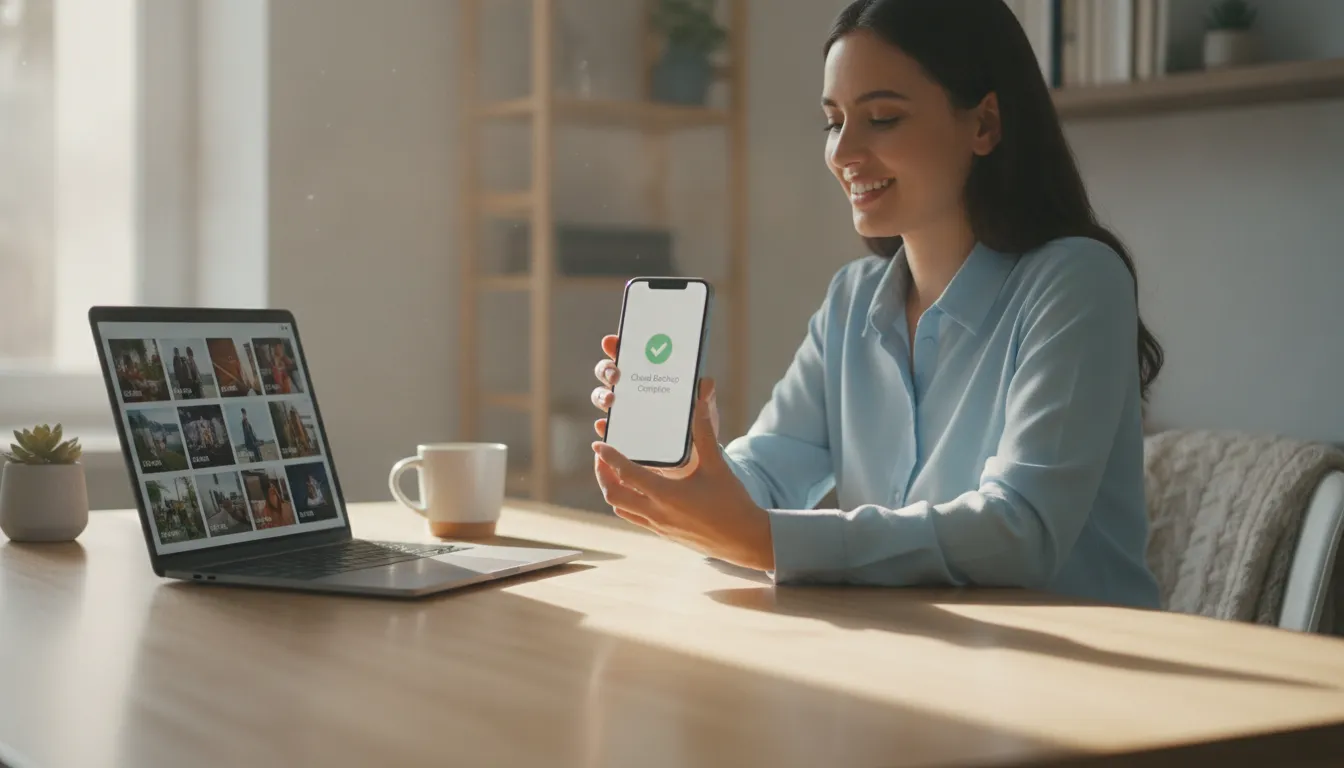
Keeping photos safe is not a task for technology experts. With just a few minutes of setup, anyone can have automatic backup working on their phone — and sleep soundly knowing their memories are protected.
The most important step is simply to start. It doesn’t matter if you use Android or iPhone, if you prefer the cloud or an external hard drive, if you have a thousand photos or a hundred thousand. The risk of loss exists for everyone, and the solution is within anyone’s reach.
Today, before closing this article, open Google Photos or iCloud settings on your phone and check if backup is enabled. This small gesture can prevent an irreplaceable loss in the future.